
Follow along in PinyPiny. The app is free to download; premium paper, fonts or styling mentioned in this guide may require Pro.
1. Give the day one small question
Before you fill a page, choose what it is about. “What surprised me today?” produces a different entry from “What did I eat?” or “Where did I feel most at home?” One question gives your photos and captions a reason to sit together.
For a short trip, you could make an arrival page, a favorite meal page, and a last-day reflection. For a longer trip, a few place-based entries may be easier to keep than a strict daily record.
- A first impression: what did you notice as soon as you arrived?
- A small discovery: what would you have missed if you had hurried?
- A last-day thought: what will you miss when you leave?
2. Collect one anchor photo and one close-up
Use a wide view to establish the place and a small detail to make it personal. A street and the pastry you ate there, or a beach and the book you carried, give you a simple pair to build around. More photos are optional.
Photograph tickets or small souvenirs if you want to include them. Before sharing a page, check those images for names, codes, and booking information. Keep a quick text note of the place or dish name while you still remember it.
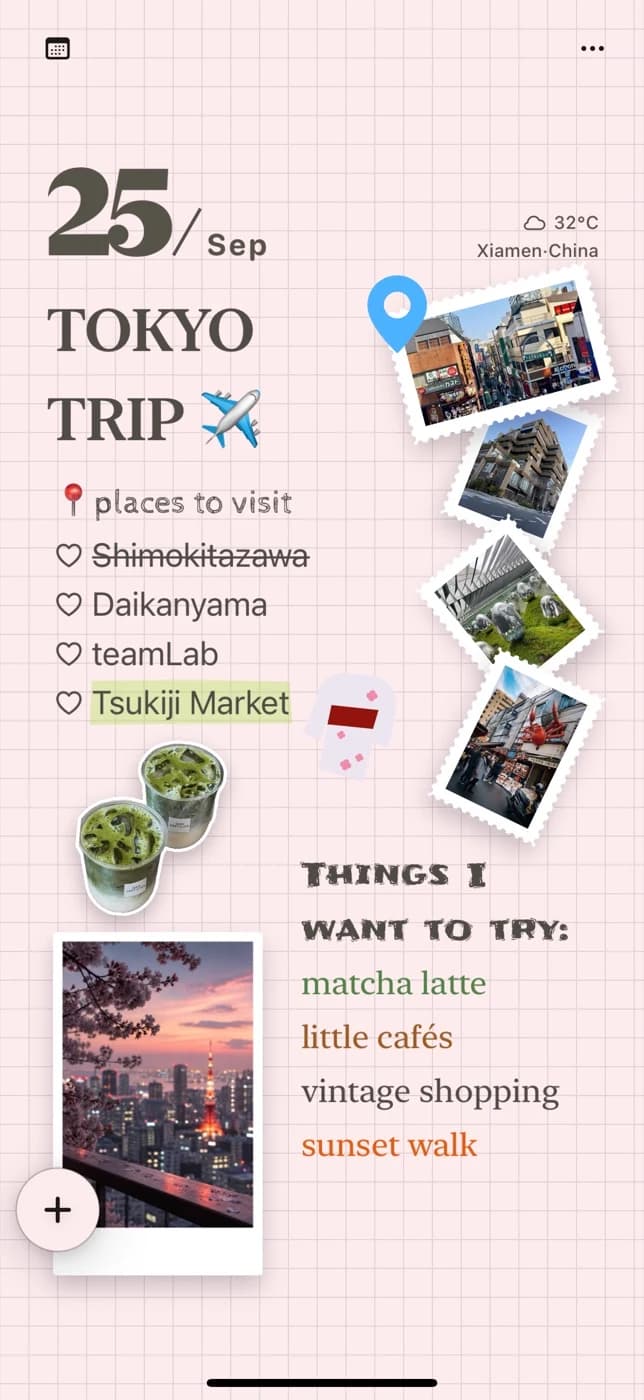
3. Make a rough entry while it is fresh
Create a note in PinyPiny, add your main photo, and write the place and a short sentence. Do this before spending time on colors or decoration. You can refine the page when you have a quieter moment.
Basic editing works with content available on your device even without a connection. Prepare additional papers or fonts before leaving if you plan to use them. Downloads and Pro iCloud sync need network access.
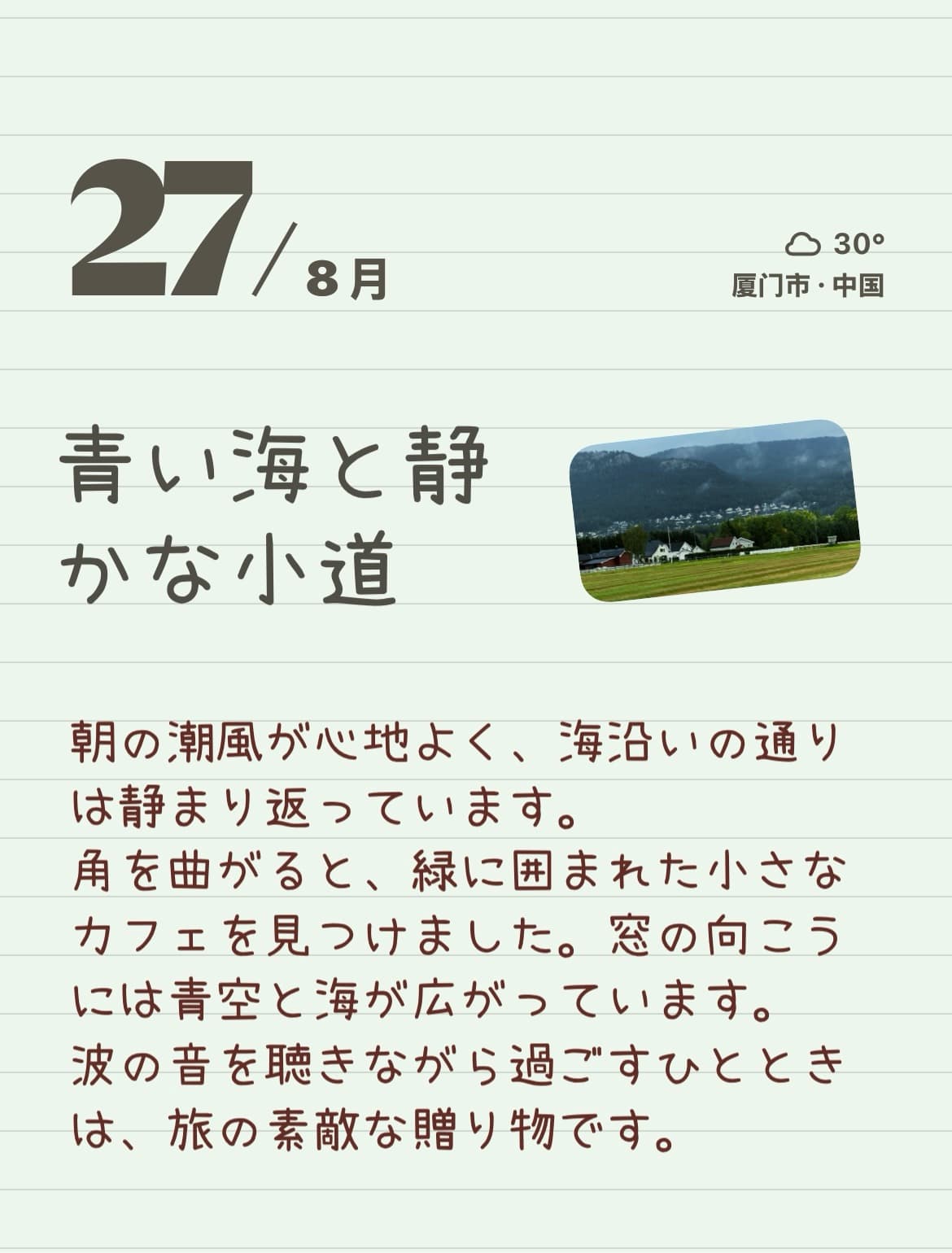
4. Build the layout around the part you remember
Place the strongest photo first. Add a clear title with the place or day, then group the caption beside the picture it explains. Keep the second image smaller so the page has an obvious starting point.
A photo sticker of a souvenir can connect the pieces without adding another full photograph. Use the same accent color or title style across the trip to give the collection some continuity. Premium paper and font choices are optional Pro features, not a requirement for the layout.
- Lead with one photo and a short place or day title.
- Write three small details: something seen, something felt, something unexpected.
- Add a close-up or personal sticker only if it strengthens the story.
5. Turn one page into a postcard
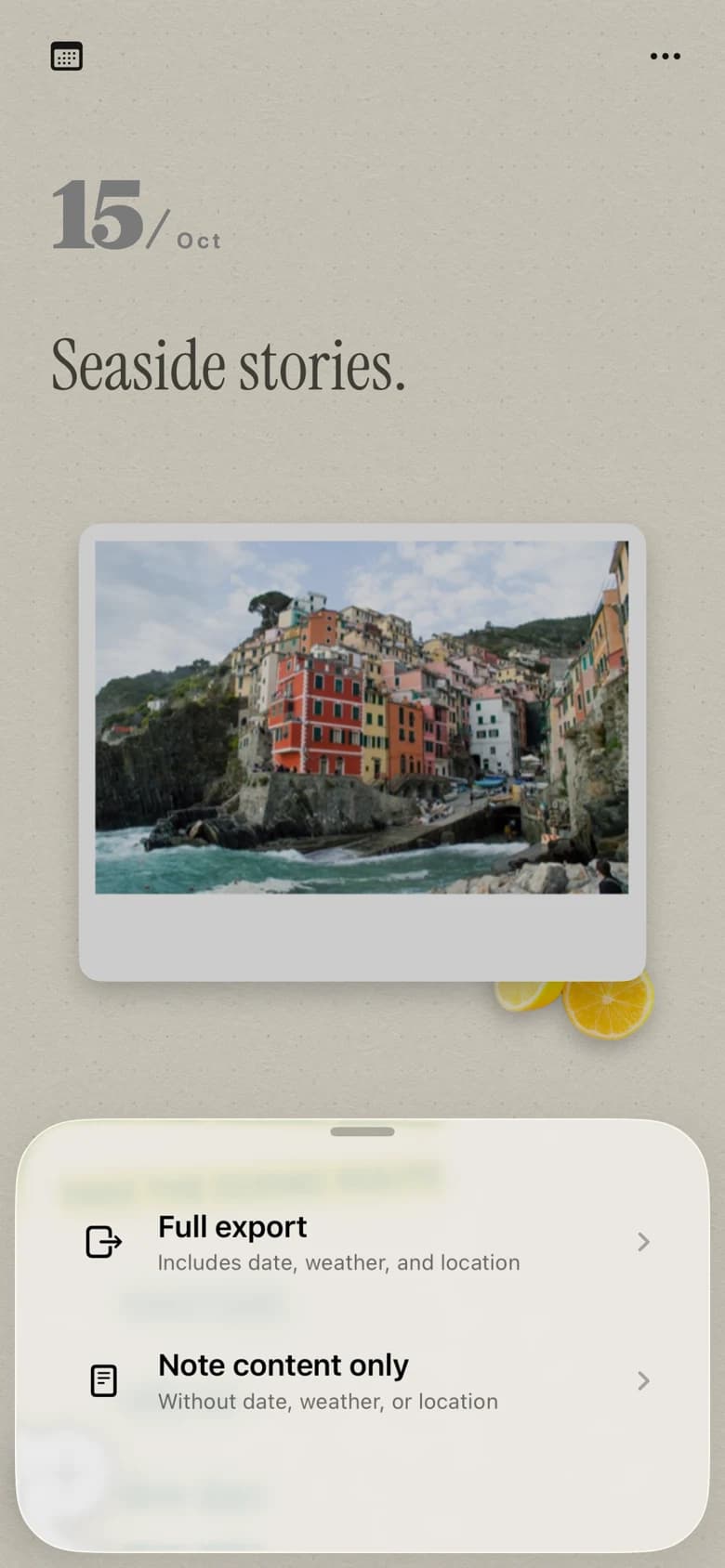
Before exporting, read the caption and make sure the page is comfortable to view at phone size. Remove anything that hides a face, place name, or important detail. Use the note's export option to save a finished image to Photos.
The image is a shareable copy, while your editable note stays in PinyPiny. When you get home, revisit the card stack and add the things the trip made you think about afterward. That later perspective can become its own final page.
Common questions
What can I write besides a list of places?
Write the detail the itinerary does not contain: a sound, a taste, a conversation, a wrong turn, or a small surprise. A short line beside a photo can be enough.
Should I finish every page during the trip?
You can make a rough entry first with a photo and a few words, then return to arrange it. Choose the pace that leaves you time to experience the trip.
Can I keep travel pages on both iPhone and iPad?
PinyPiny supports iPhone and iPad. iCloud sync is an optional Pro feature and requires a network connection and the appropriate iCloud setup on your devices.
