

Give one small moment a whole page
A scrapbook does not need a special occasion. The first page might be a photo from your walk, the name of the song you played on repeat, and one sentence about the afternoon. Choosing a single moment makes it easier to decide what belongs on the page.
For an inspiration collage, collect details that share a mood rather than a date: the color of a wall, a phrase from your own notebook, or a picture of an object on your desk. Let one image lead, and use the other pieces to tell its story.
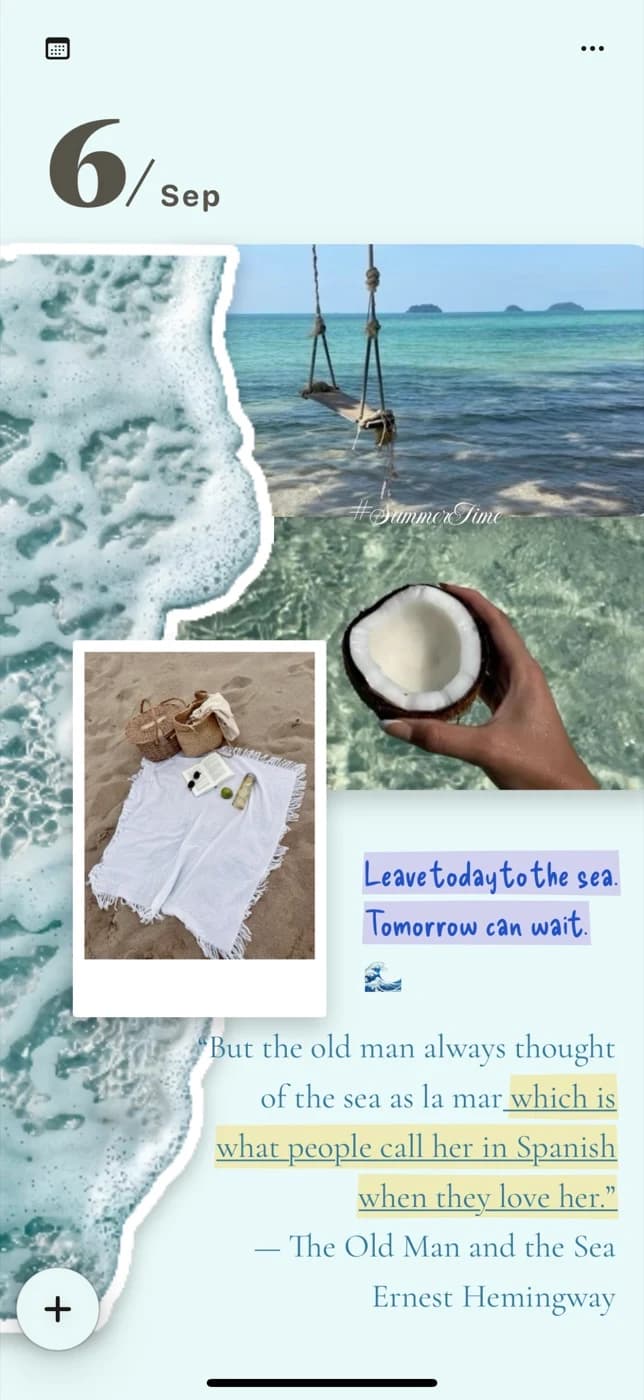
Arrange the page around a focal point
Begin with the largest piece: a photo or a short title. Add a smaller note beside it, then leave a little paper visible. Moving and rotating separate elements lets you try a loose collage or a calmer layout without having to fit everything into a single text column.
Keep the main caption easy to read. An angled photo can suggest a physical scrapbook, but every item does not need a different rotation or color. Repeat one accent color to connect the page.
- Create a note and add a photo as a separate page element.
- Add a title or a few lines of text, then move the pieces into place.
- Adjust their sizes and spacing until one detail clearly leads the page.
Make the decoration part of the memory
Instead of looking for a sticker that almost fits, make one from a photo of something that was there: a flower, a cup, a pet, or a souvenir. Open Sticker Studio, choose a photo, select the detected subject, and preview the cutout before placing it on the paper.
You can also take a new picture from Sticker Studio. The camera flow prepares a sticker preview from the main detected subject. A clear subject against a simple background is a useful starting point; recognition depends on the photo.
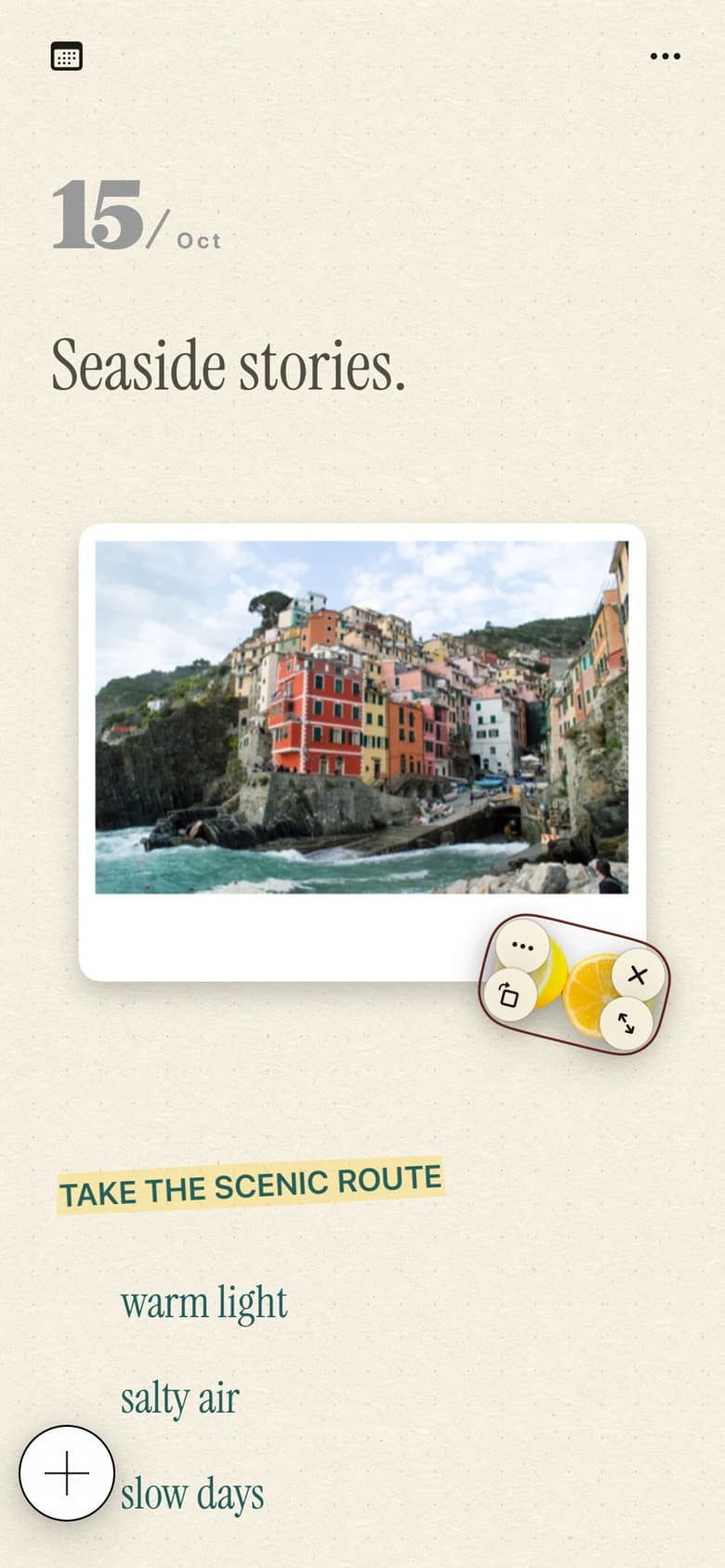
Finish a page you will want to open again
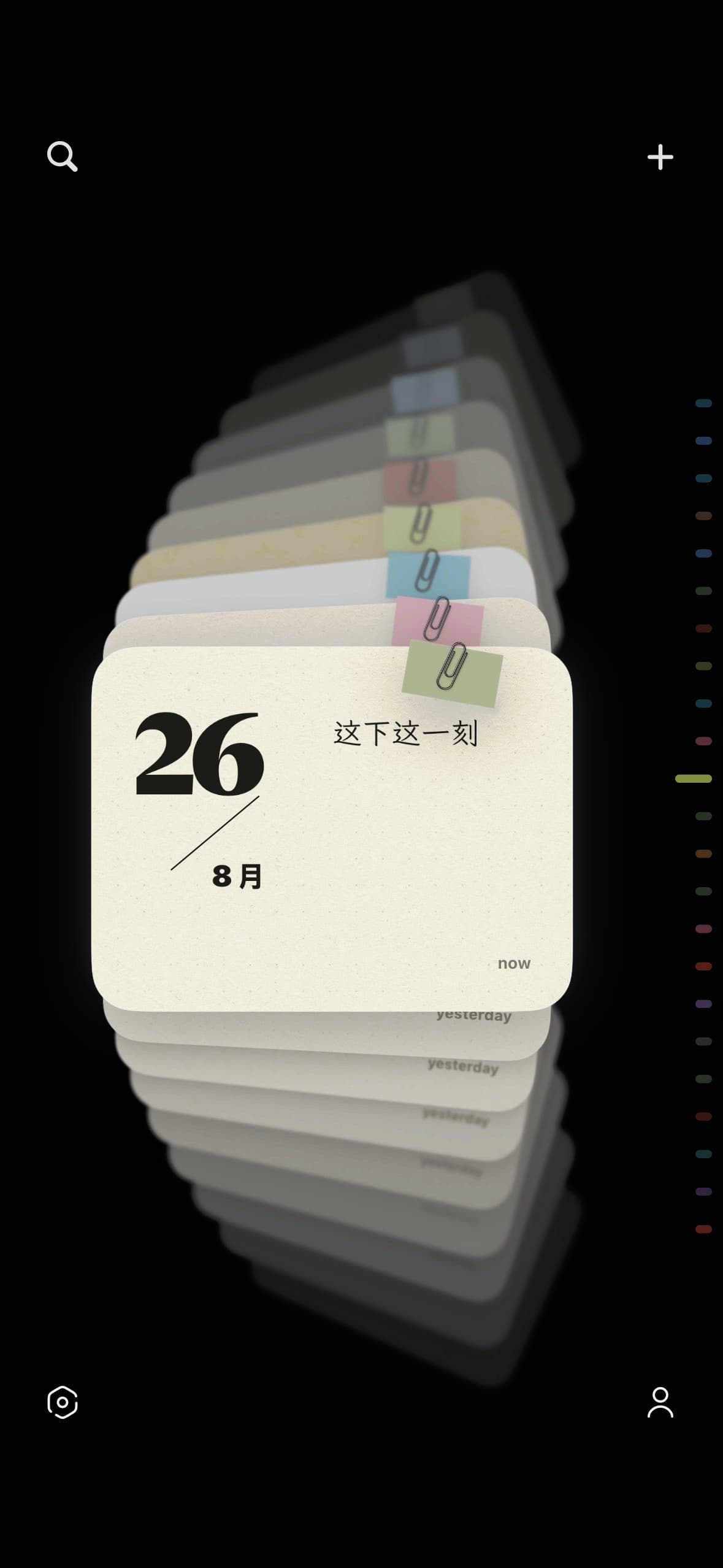
Read the page once at a comfortable size. Remove anything that hides the main photo or makes the caption hard to read. Return to the card stack when you are done, or export the finished note as an image to save in Photos.
You can begin with text, separately placed photos, and stickers in the free download. Premium papers and fonts, photos embedded within text, animation, and iCloud sync are optional Pro features. The examples show creative possibilities rather than downloadable templates.
Make your first page
Start with one photo and a moment you want to keep. This guide walks through a small, freely arranged page in PinyPiny using text, a separately placed photo, and a personal sticker. You can follow the same idea on iPad.
Make your first scrapbook page on iPhone.A few useful answers
What is a digital scrapbook?
A digital scrapbook combines photos, words, and decorative details on a screen. In PinyPiny, you build each page with separately arranged elements and can export the result as an image.
Can I start without buying Pro?
Yes. PinyPiny is free to download, and you can begin with text, separately placed photos, and stickers. Pro adds premium papers and fonts, inline photos, animation, and iCloud sync.
Is this a drawing app?
PinyPiny focuses on arranging text, photos, and stickers. The layouts on this website do not require handwriting or drawing tools.